

Use cases
Email capture over SMS
Agent sends a text mid-call. Customer replies with their email. Agent reads it back and continues.
Form capture via WhatsApp
Agent sends a form link over WhatsApp. Customer fills it out on their phone while still on the call.
Loop in a manager
Agent texts a manager to check transfer availability before handing off — no dead air for the customer.
Quote approval via Slack
Agent pings a Slack channel for sign-off on a custom price, then relays the answer to the customer.
Setup on Vapi
1
Create a new tool
In your Vapi dashboard, go to Tools and click Create Tool. Select Function as the tool type.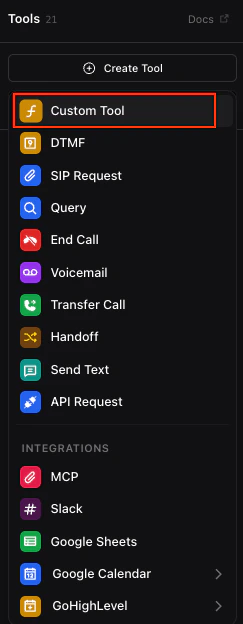
2
Name and describe the tool
Give the tool a name and description your agent will use to decide when to call it. For example: 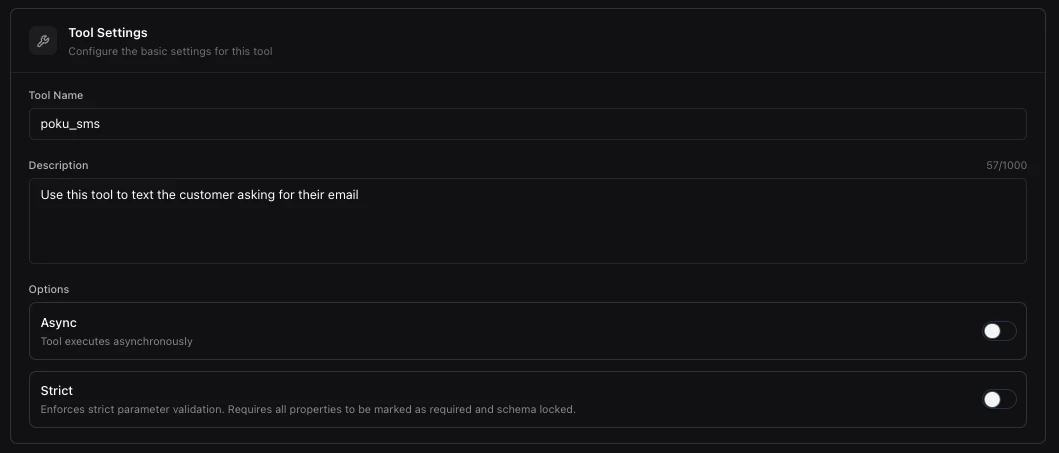
send_sms, “Send an SMS to the customer and wait for their reply.”3
Define the parameters
Add the parameters your agent will pass — for example 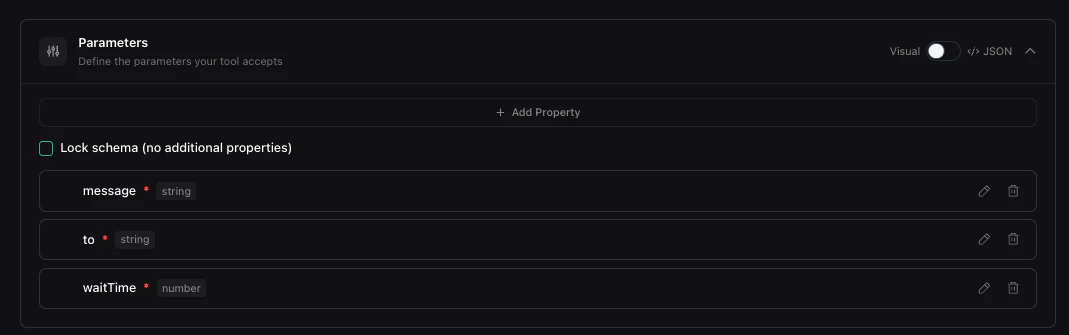
to, message, and waitTime. These map directly to the Poku API fields.To send the message to the customer’s phone number, pass {{customer.number}} in the to field. See Vapi dynamic variables for details.4
Set the Server URL
Enter the Poku API endpoint for the action you want:
5
Set the timeout
Set the tool timeout to be longer than the
waitTime you plan to pass to Poku. If your waitTime is 30 seconds, set the timeout to at least 40 seconds.6
Add the authorization header
Under HTTP Headers, add: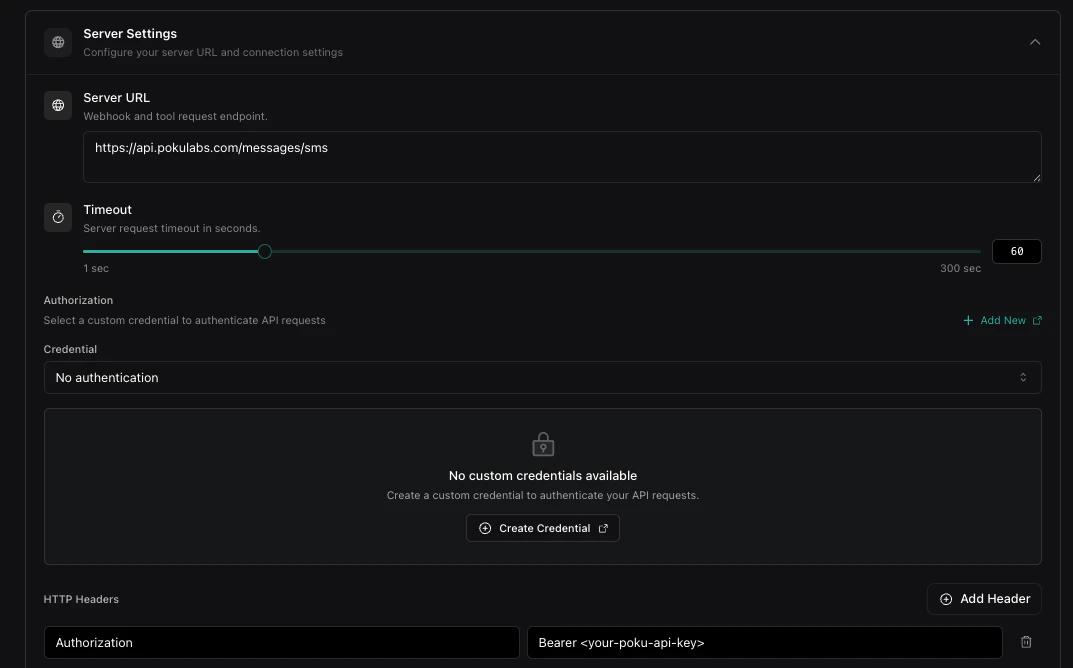
7
Save and add to your agent
Hit Save. Then navigate to your agent and add the tool from the tools list.
8
Update your agent prompt
Update your agent’s system prompt to reference the tool by name so it knows when and how to call it.
Advanced: Async context injection for call transfers
Standard tool calls stall the conversation while waiting for a response. The Vapi agent will say “hold a second. Just a second.” However, with async context injection, Poku pushes the reply directly into your live Vapi session — so your agent can keep the conversation flowing while waiting for a human to respond in the background.How it works
- Your agent calls a Poku tool that notifies a human
- Poku immediately returns success so the agent can continue the conversation
- When the human replies, Poku injects their response into the live Vapi call using your Vapi API key
- The agent receives the context and acts on it mid-conversation — no stalling
Setup
Step 1 — Add your Vapi API key to Poku Go to dashboard.pokulabs.com/integrations under Integrations > Vapi and paste in your Vapi API key. This allows Poku to inject context into your live Vapi sessions asynchronously. Step 2 — Create the custom tool in Vapi Create a new Function tool with the following: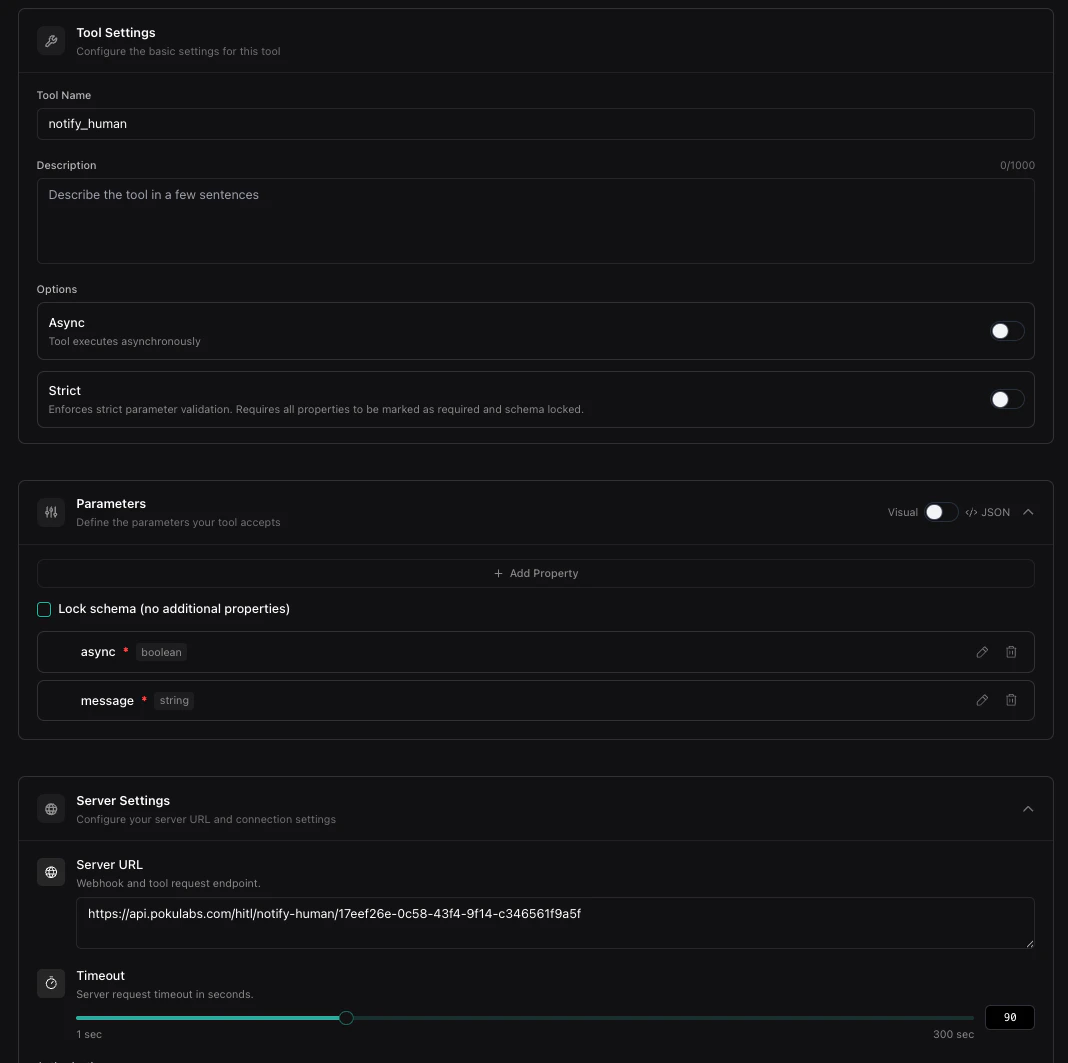
Use the
notify-human endpoint. Your <channel_id> comes from your Poku channel card — copy it directly from the card in your dashboard.