

Use cases
Email capture over SMS
Agent sends a text mid-call. Customer replies with their email. Agent reads it back and continues.
Form capture via WhatsApp
Agent sends a form link over WhatsApp. Customer fills it out on their phone while still on the call.
Loop in a manager
Agent texts a manager to check transfer availability before handing off — no dead air for the customer.
Quote approval via Slack
Agent pings a Slack channel for sign-off on a custom price, then relays the answer to the customer.
See it in action
Setup on Retell AI
1
Add a custom function
In your Retell agent, navigate to Functions and add a new custom function.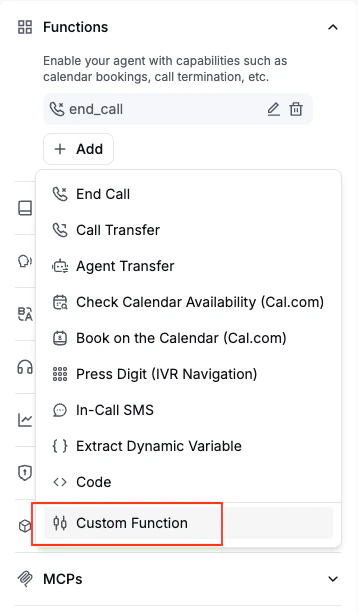
2
Name and describe the function
The name and description can be anything — write them so your agent understands when to use the tool. For example:
send_sms, “Send an SMS to the customer and wait for their reply.”3
Set the API endpoint
Select POST and enter the Poku API URL for the action you want:
4
Set the timeout
Set the function timeout to be equal to or longer than the
waitTime you plan to pass to Poku.5
Add the authorization header
Under Headers, add:
6
Define the parameters
Under Form, add the parameters your agent will pass in the request body — for example 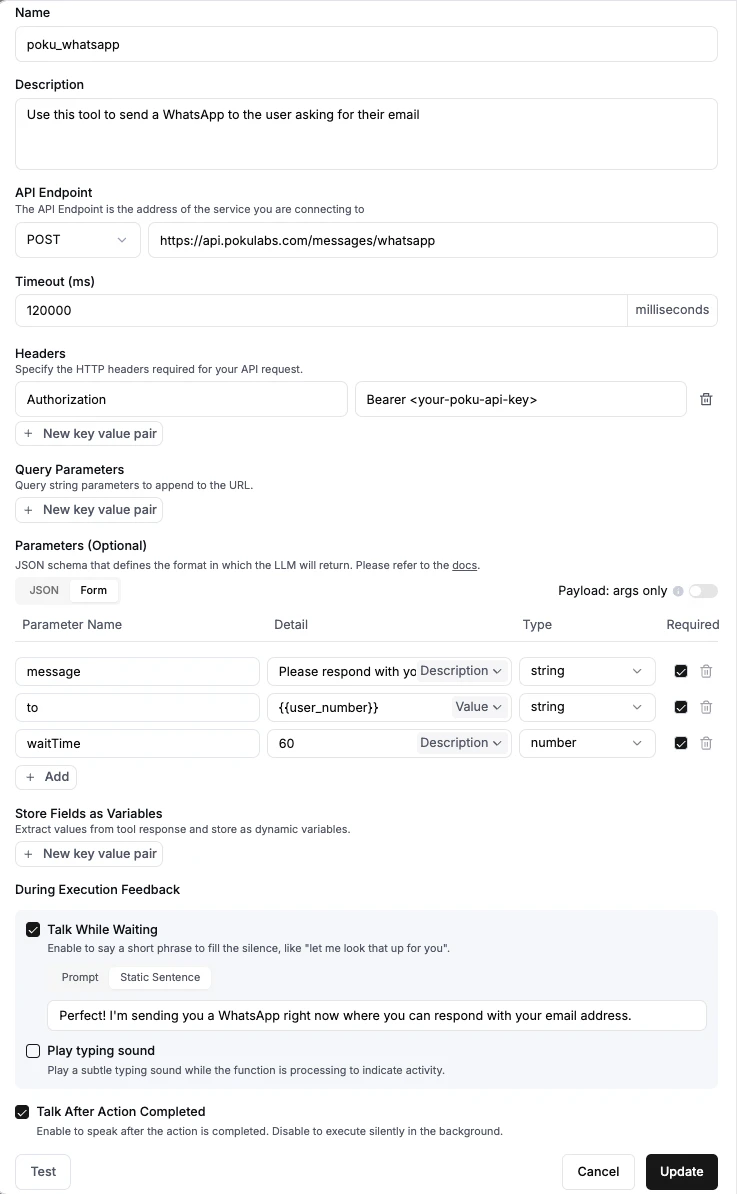
to, message, and waitTime. These map directly to the Poku API fields.7
Configure execution feedback
Under During Execution:
- Talk After Action Completed — always enable this so your agent speaks after receiving the tool response
- Talk While Waiting — enable this if you want the agent to keep talking with the customer while waiting for the Poku response (e.g., to fill dead air)
8
Update your agent prompt
Update your agent’s system prompt to reference the new tool by name so it knows when and how to call it.