> ## Documentation Index
> Fetch the complete documentation index at: https://docs.pokulabs.com/llms.txt
> Use this file to discover all available pages before exploring further.
# Vapi
> Use Poku's messaging and forms tools inside your Vapi voice agent.
Add Poku as a custom tool in any Vapi agent — giving your voice AI the ability to text customers, capture structured data, loop in a manager, and more.
***
## Use cases
Agent sends a text mid-call. Customer replies with their email. Agent reads it back and continues.
Agent sends a form link over WhatsApp. Customer fills it out on their phone while still on the call.
Agent texts a manager to check transfer availability before handing off — no dead air for the customer.
Agent pings a Slack channel for sign-off on a custom price, then relays the answer to the customer.
***
## Setup on Vapi
In your Vapi dashboard, go to **Tools** and click **Create Tool**. Select **Function** as the tool type.
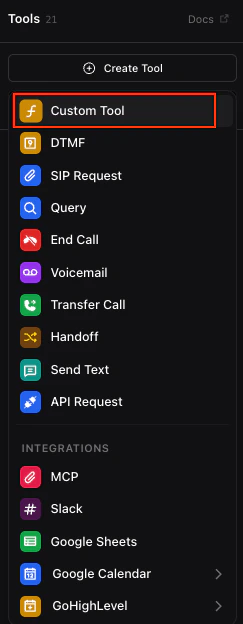 Give the tool a name and description your agent will use to decide when to call it. For example: `send_sms`, *"Send an SMS to the customer and wait for their reply."*
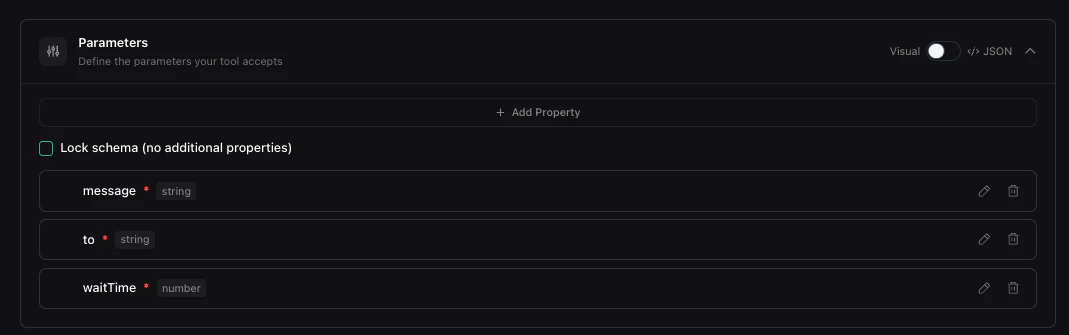
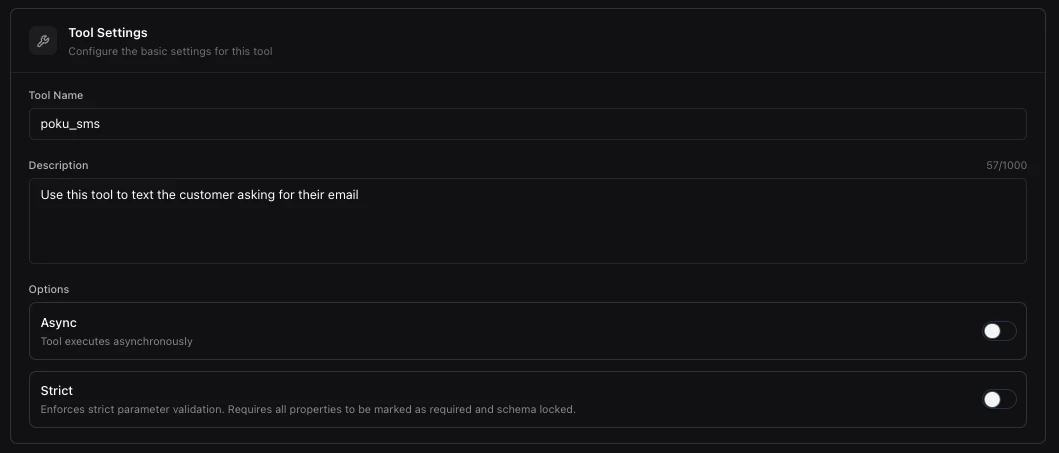 Add the parameters your agent will pass — for example `to`, `message`, and `waitTime`. These map directly to the [Poku API fields](/api-reference/messages/send-sms).
To send the message to the customer's phone number, pass `{{customer.number}}` in the `to` field. See [Vapi dynamic variables](https://docs.vapi.ai/assistants/dynamic-variables) for details.
Add the parameters your agent will pass — for example `to`, `message`, and `waitTime`. These map directly to the [Poku API fields](/api-reference/messages/send-sms).
To send the message to the customer's phone number, pass `{{customer.number}}` in the `to` field. See [Vapi dynamic variables](https://docs.vapi.ai/assistants/dynamic-variables) for details.
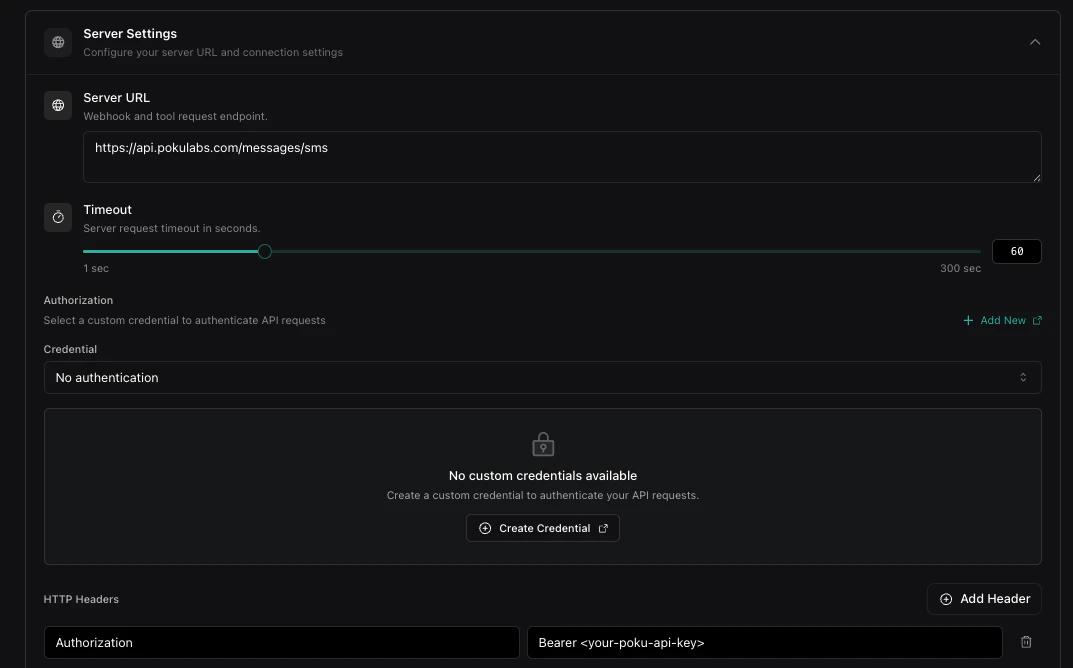
 Enter the Poku API endpoint for the action you want:
| Action | URL |
| ------------------ | -------------------------------------------- |
| Send SMS | `https://api.pokulabs.com/messages/sms` |
| Send WhatsApp | `https://api.pokulabs.com/messages/whatsapp` |
| Send Slack message | `https://api.pokulabs.com/messages/slack` |
Set the tool timeout to be **longer than the `waitTime` you plan to pass to Poku**. If your `waitTime` is 30 seconds, set the timeout to at least 40 seconds.
Under **HTTP Headers**, add:
| Key | Value |
| --------------- | ---------------------------- |
| `Authorization` | `Bearer ` |
Enter the Poku API endpoint for the action you want:
| Action | URL |
| ------------------ | -------------------------------------------- |
| Send SMS | `https://api.pokulabs.com/messages/sms` |
| Send WhatsApp | `https://api.pokulabs.com/messages/whatsapp` |
| Send Slack message | `https://api.pokulabs.com/messages/slack` |
Set the tool timeout to be **longer than the `waitTime` you plan to pass to Poku**. If your `waitTime` is 30 seconds, set the timeout to at least 40 seconds.
Under **HTTP Headers**, add:
| Key | Value |
| --------------- | ---------------------------- |
| `Authorization` | `Bearer ` |
 Hit **Save**. Then navigate to your agent and add the tool from the tools list.
Update your agent's system prompt to reference the tool by name so it knows when and how to call it.
***
## Advanced: Async context injection for call transfers
Standard tool calls stall the conversation while waiting for a response. The Vapi agent will say "hold a second. Just a second."
However, with async context injection, Poku pushes the reply directly into your live Vapi session — so your agent can keep the conversation flowing while waiting for a human to respond in the background.
### How it works
1. Your agent calls a Poku tool that notifies a human
2. Poku immediately returns success so the agent can continue the conversation
3. When the human replies, Poku injects their response into the live Vapi call using your Vapi API key
4. The agent receives the context and acts on it mid-conversation — no stalling
### Setup
**Step 1 — Add your Vapi API key to Poku**
Go to [dashboard.pokulabs.com/integrations](https://dashboard.pokulabs.com/integrations) under **Integrations > Vapi** and paste in your Vapi API key. This allows Poku to inject context into your live Vapi sessions asynchronously.
**Step 2 — Create the custom tool in Vapi**
Create a new Function tool with the following:
| Field | Value |
| ------------------------ | --------------------------------------------------------- |
| **Name** | `check_if_rep_available_for_transfer` |
| **Parameter 1** | `message` (required, string) |
| **Parameter 2** | `async` (required, boolean) — must be `true` |
| **Server URL** | `https://api.pokulabs.com/hitl/notify-human/` |
| **Authorization header** | `Bearer ` |
Hit **Save**. Then navigate to your agent and add the tool from the tools list.
Update your agent's system prompt to reference the tool by name so it knows when and how to call it.
***
## Advanced: Async context injection for call transfers
Standard tool calls stall the conversation while waiting for a response. The Vapi agent will say "hold a second. Just a second."
However, with async context injection, Poku pushes the reply directly into your live Vapi session — so your agent can keep the conversation flowing while waiting for a human to respond in the background.
### How it works
1. Your agent calls a Poku tool that notifies a human
2. Poku immediately returns success so the agent can continue the conversation
3. When the human replies, Poku injects their response into the live Vapi call using your Vapi API key
4. The agent receives the context and acts on it mid-conversation — no stalling
### Setup
**Step 1 — Add your Vapi API key to Poku**
Go to [dashboard.pokulabs.com/integrations](https://dashboard.pokulabs.com/integrations) under **Integrations > Vapi** and paste in your Vapi API key. This allows Poku to inject context into your live Vapi sessions asynchronously.
**Step 2 — Create the custom tool in Vapi**
Create a new Function tool with the following:
| Field | Value |
| ------------------------ | --------------------------------------------------------- |
| **Name** | `check_if_rep_available_for_transfer` |
| **Parameter 1** | `message` (required, string) |
| **Parameter 2** | `async` (required, boolean) — must be `true` |
| **Server URL** | `https://api.pokulabs.com/hitl/notify-human/` |
| **Authorization header** | `Bearer ` |
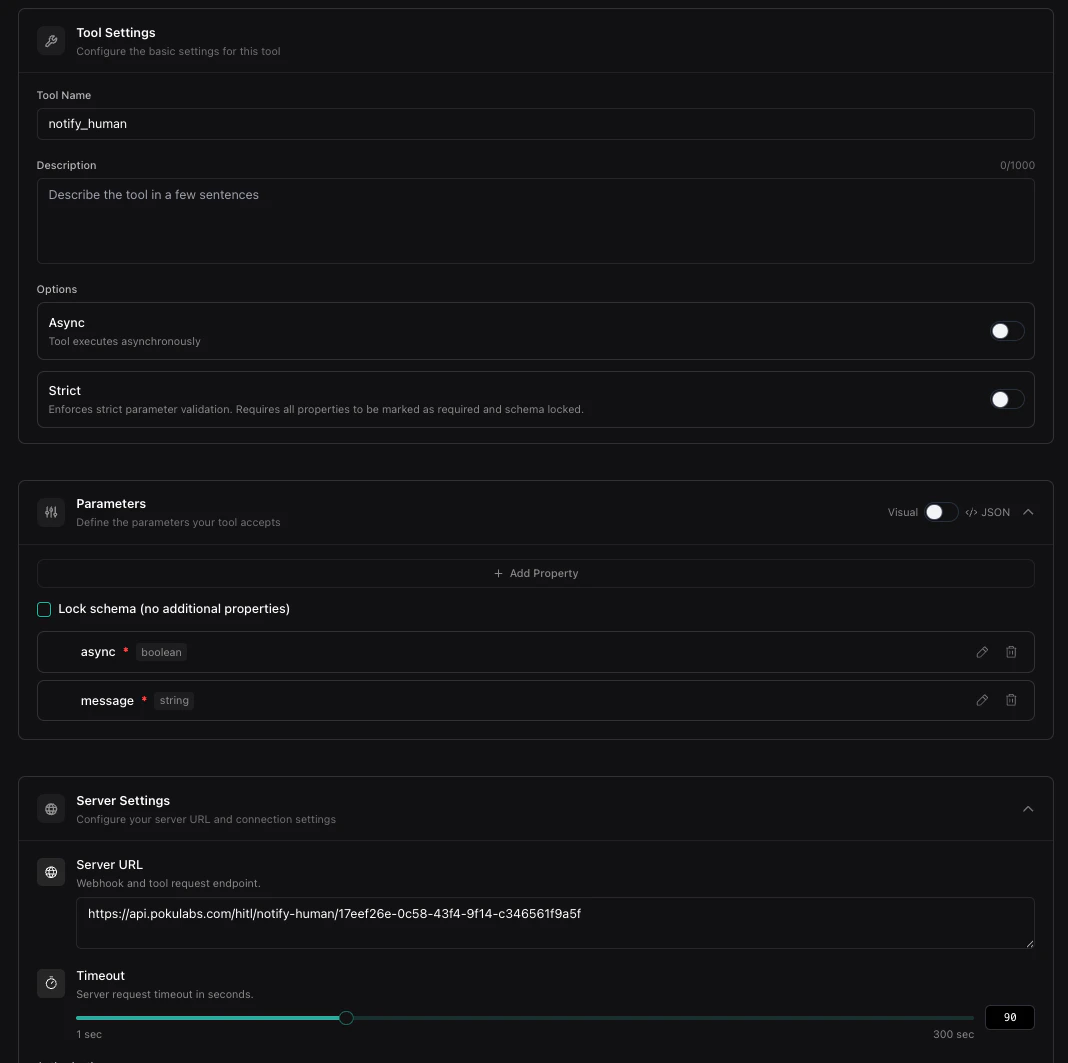 Use the `notify-human` endpoint. Your `` comes from your Poku channel card — copy it directly from the card in your dashboard.
**Step 3 — Write the agent prompt**
Give your agent explicit instructions on when to call the tool and how to handle the injected response. Example:
```
If customer asks to speak to a human
First: Call check_if_rep_available_for_transfer
Then: Respond with "I am checking if my manager is available, but I can keep helping you in the meantime."
When a manager becomes available:
(Triggered by message from human manager)
Interrupt politely: "Quick update — someone from our team just became available. Would you like me to transfer you now?"
If yes: Call transfer_call tool to initiate transfer
If no: Continue assisting the customer
```
Use the `notify-human` endpoint. Your `` comes from your Poku channel card — copy it directly from the card in your dashboard.
**Step 3 — Write the agent prompt**
Give your agent explicit instructions on when to call the tool and how to handle the injected response. Example:
```
If customer asks to speak to a human
First: Call check_if_rep_available_for_transfer
Then: Respond with "I am checking if my manager is available, but I can keep helping you in the meantime."
When a manager becomes available:
(Triggered by message from human manager)
Interrupt politely: "Quick update — someone from our team just became available. Would you like me to transfer you now?"
If yes: Call transfer_call tool to initiate transfer
If no: Continue assisting the customer
```