> ## Documentation Index
> Fetch the complete documentation index at: https://docs.pokulabs.com/llms.txt
> Use this file to discover all available pages before exploring further.
# Make.com Setup
> Route incoming SMS through Make.com with an AI agent + human handoff toggle.
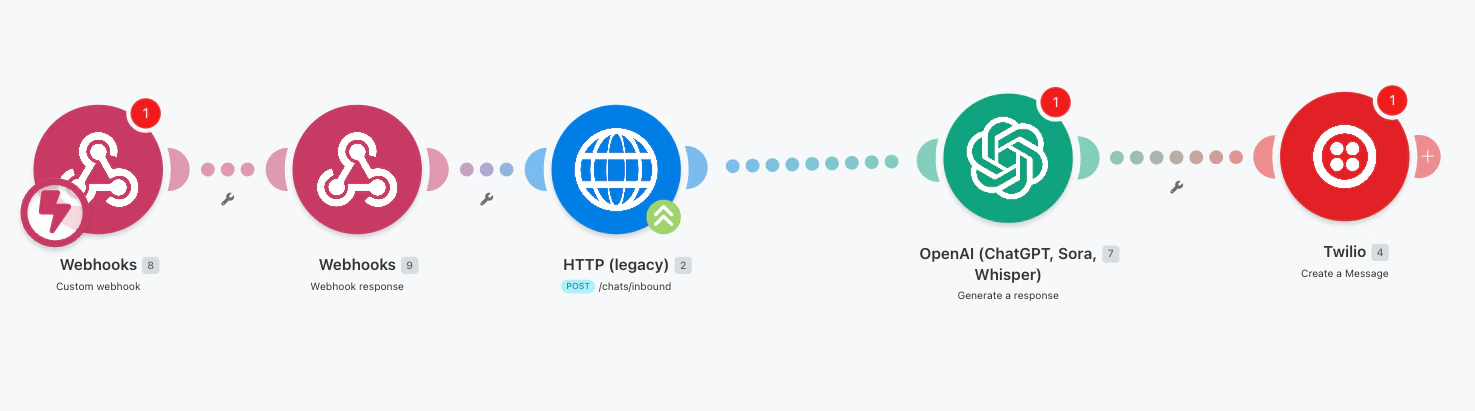
This example scenario routes incoming SMS messages through a lightweight Make.com workflow, with Poku controlling whether your AI agent responds.
 ***
## Prerequisites
Before setting up, grab your **Poku API key** from the [Poku dashboard](https://dashboard.pokulabs.com/). You'll need it to enable the agent toggle in your workflow.
***
## How it works
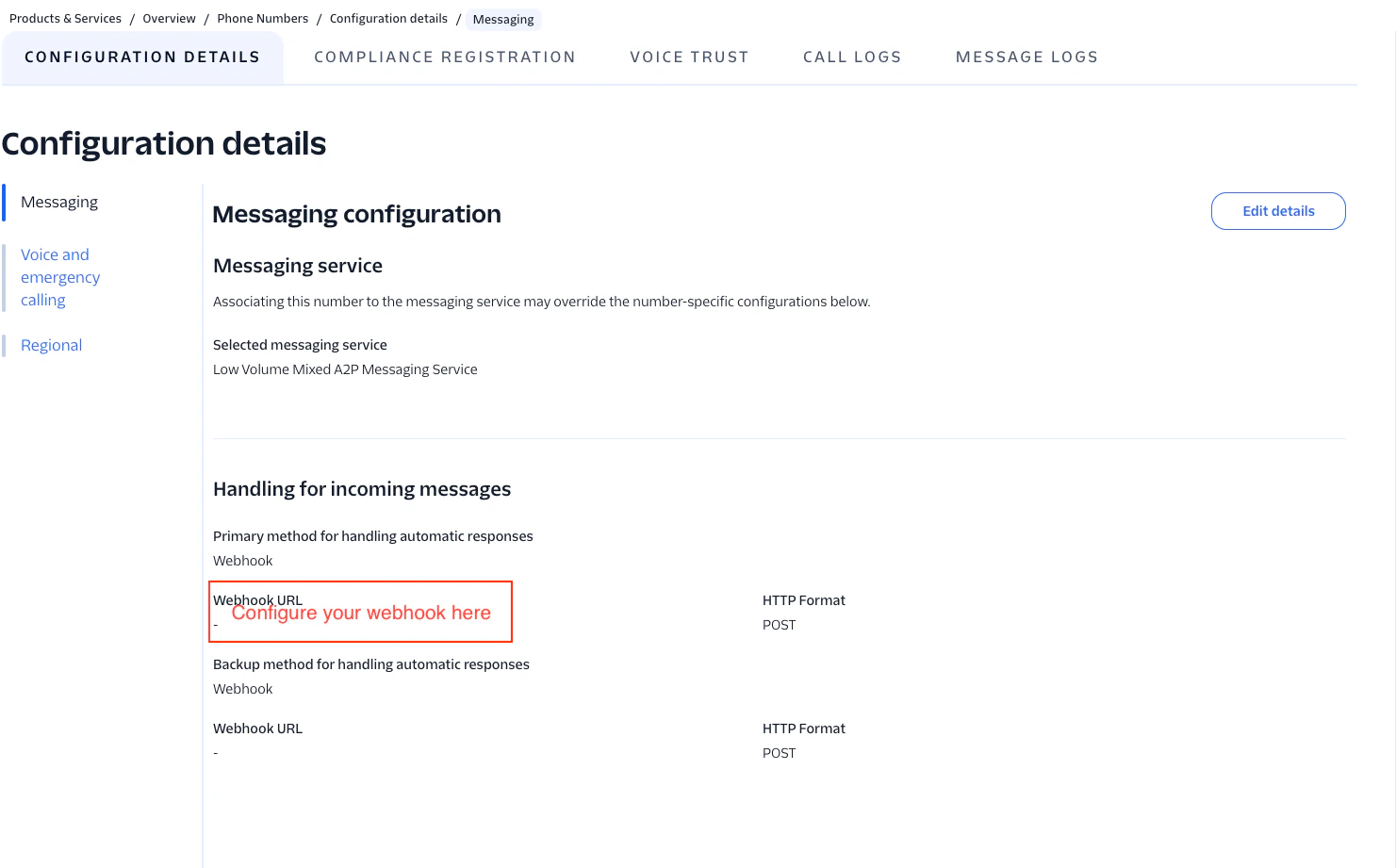
Configure your Twilio number to send all incoming SMS messages to this webhook, triggering the workflow.
***
## Prerequisites
Before setting up, grab your **Poku API key** from the [Poku dashboard](https://dashboard.pokulabs.com/). You'll need it to enable the agent toggle in your workflow.
***
## How it works
Configure your Twilio number to send all incoming SMS messages to this webhook, triggering the workflow.
 Immediately returns a `204 No Content` response to Twilio, preventing Make.com from sending an unwanted "Accepted" reply.
Poku checks whether your AI agent is enabled:
**Agent OFF** — the workflow stops; the message is not forwarded to the agent.
Immediately returns a `204 No Content` response to Twilio, preventing Make.com from sending an unwanted "Accepted" reply.
Poku checks whether your AI agent is enabled:
**Agent OFF** — the workflow stops; the message is not forwarded to the agent.
 **Agent ON** — the message continues to your AI agent (in this example, a ChatGPT node), which generates and sends a reply.
 ***
## Import the scenario
[Download the Make.com scenario](https://us2.make.com/public/shared-scenario/t9b1MxoV1OU/poku-sms-dashboard-integration) and import it into your account.
After importing, replace all placeholder credentials with your own Twilio credentials and Poku API key.
***
## Import the scenario
[Download the Make.com scenario](https://us2.make.com/public/shared-scenario/t9b1MxoV1OU/poku-sms-dashboard-integration) and import it into your account.
After importing, replace all placeholder credentials with your own Twilio credentials and Poku API key.