> ## Documentation Index
> Fetch the complete documentation index at: https://docs.pokulabs.com/llms.txt
> Use this file to discover all available pages before exploring further.
# Retell AI
> Connect Poku's tools to your Retell AI voice agent.
Poku Labs is a proud [Retell AI App Partner](https://www.retellai.com/app-partner/poku-labs). You can add Poku's API as a custom function in any Retell agent — giving your voice AI the ability to text customers, capture structured data, loop in a manager, and more.
***
## Use cases
Agent sends a text mid-call. Customer replies with their email. Agent reads it back and continues.
Agent sends a form link over WhatsApp. Customer fills it out on their phone while still on the call.
Agent texts a manager to check transfer availability before handing off — no dead air for the customer.
Agent pings a Slack channel for sign-off on a custom price, then relays the answer to the customer.
***
## See it in action
***
## Setup on Retell AI
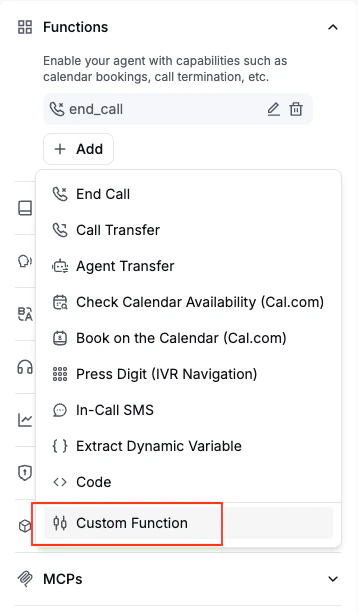
In your Retell agent, navigate to **Functions** and add a new custom function.
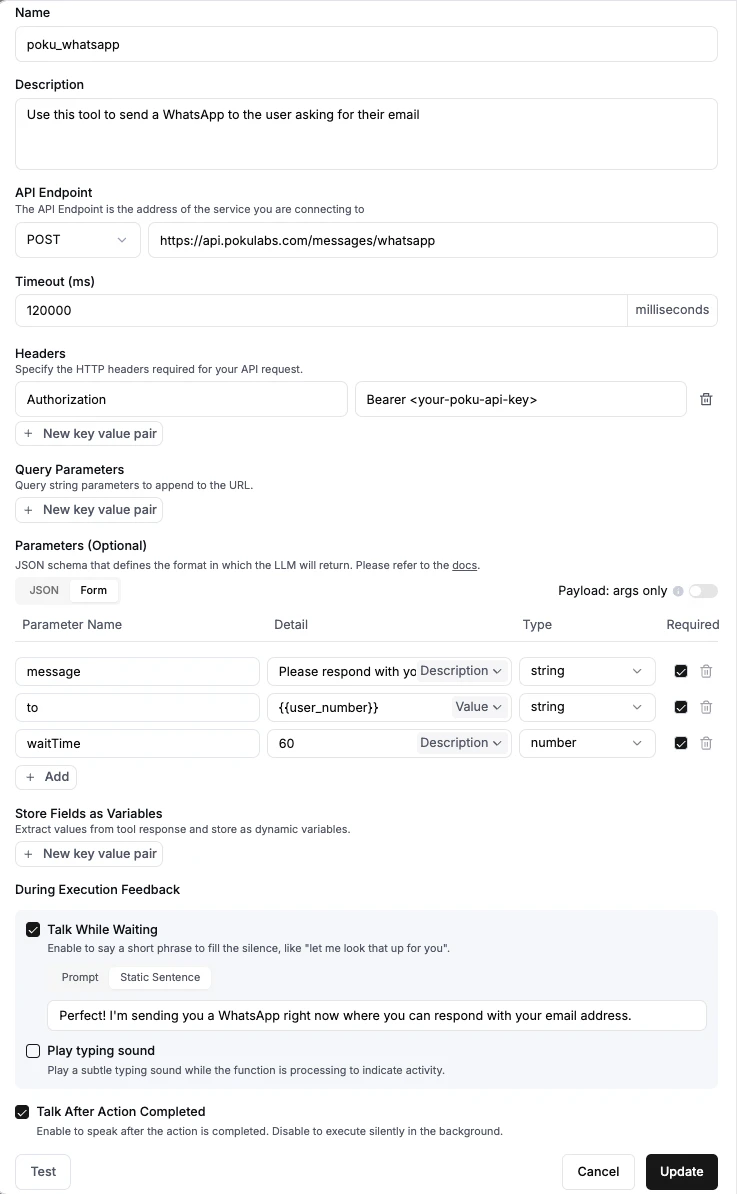
The name and description can be anything — write them so your agent understands when to use the tool. For example: `send_sms`, *"Send an SMS to the customer and wait for their reply."*
Select **POST** and enter the Poku API URL for the action you want:
| Action | URL |
| ------------------ | -------------------------------------------- |
| Send SMS | `https://api.pokulabs.com/messages/sms` |
| Send WhatsApp | `https://api.pokulabs.com/messages/whatsapp` |
| Send Slack message | `https://api.pokulabs.com/messages/slack` |
Set the function timeout to be **equal to or longer than the `waitTime` you plan to pass to Poku**.
Under **Headers**, add:
| Key | Value |
| --------------- | ---------------------------- |
| `Authorization` | `Bearer ` |
Under **Form**, add the parameters your agent will pass in the request body — for example `to`, `message`, and `waitTime`. These map directly to the [Poku API fields](/api-reference/messages/send-sms).
Under **During Execution**:
* **Talk After Action Completed** — always enable this so your agent speaks after receiving the tool response
* **Talk While Waiting** — enable this if you want the agent to keep talking with the customer while waiting for the Poku response (e.g., to fill dead air)
Update your agent's system prompt to reference the new tool by name so it knows when and how to call it.
***
## Tips
**Prevent the agent from moving on before the tool call resolves**
If you don't want the agent to continue the conversation before receiving the Poku response, use a **multi-conversation flow** rather than a single prompt. This ensures the agent waits for the tool result before proceeding.